Help & Support
SEARCH
Windows 11 reinvents desktop search as an active AI command hub
SHARE IT
For decades, the search bar sitting on the desktop taskbar functioned primarily as a rudimentary indexer, useful for locating misplaced documents, launching installed programs, or occasionally pushing web queries into a browser. Microsoft is now executing an overhaul of this familiar fixture in Windows 11, systematically transforming the Search bar into an intelligent operating system agent capable of orchestrating complex local controls and executing direct actions on demand.
Rather than treating system navigation as a multi-step journey through nested settings windows and dialog panels, the revised architecture positions natural language interaction at the heart of desktop operations. Users can type simple everyday phrases directly into the search bar, prompting immediate system adjustments such as dimming display brightness, activating dark mode, toggling Bluetooth connectivity, or muting background sound. Instead of bouncing users into the Settings app or asking them to recall specific keyboard combinations, the interface acts as an active composer that executes modifications on the fly without interrupting ongoing work.
This fundamental shift from static file indexing to active orchestration also sets the groundwork for deeper mobile synergy. Microsoft is preparing expanded integration with Phone Link, allowing users to compose and dispatch text messages via paired smartphones straight from the taskbar search field. The search box effectively ceases to be a passive passive catalog and begins operating as an overarching control dashboard for both local PC hardware and linked mobile devices.
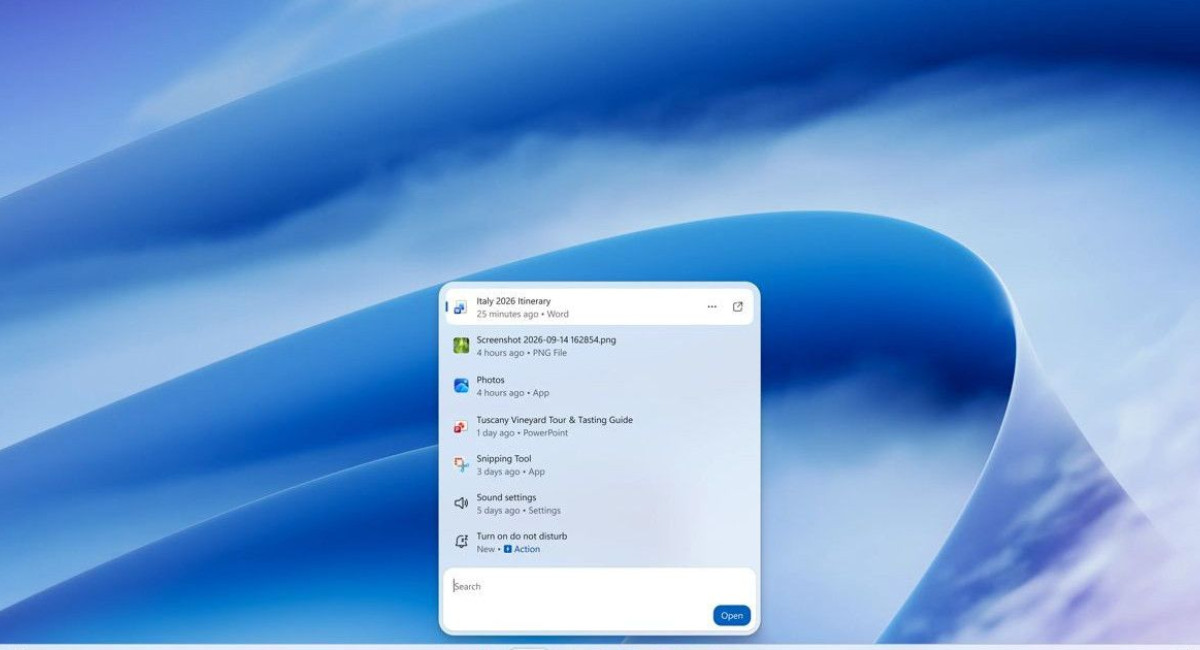
Beneath the surface layer of conversational intelligence lies an extensive mechanical refactoring. The search interface has been rebuilt on top of WinUI 3, an engineering modernization specifically targeted at longstanding user complaints regarding desktop responsiveness and heavy memory footprints. Early testing shows that this switch yields noticeably swifter launch times, virtually eliminates visual lag, and significantly curtails RAM consumption compared to previous implementations. Alongside this performance lift, the visual presentation abandons the previous bulky preview cards in favor of a clean, linear, single-column list that presents search outcomes, system shortcuts, and files in a unified and uncluttered hierarchy.
A critical pillar of this redesign is the inline integration of Copilot. In earlier iterations, engaging with the digital assistant meant pulling up dedicated panels or secondary software frames that diverted focus from active tasks. In this modernized configuration, Copilot delivers generative insights and synthesized answers directly within the unified search surface. Quick inquiries, contextual summaries, and routine calculations appear without forcing an application switch, allowing everyday computer workflows to remain fluid and continuous.
Furthermore, Microsoft has refined the underlying indexing engine so that it handles human typing habits with far greater tolerance. The updated indexing algorithm intelligently accounts for typos, misspellings, and conceptual synonyms, surfacing relevant documents even when users do not remember exact file names. Enriched metadata previews and integrated web snippets will continue to arrive, giving quick glances into documents and web answers before anything is formally opened.
The revamped experience is currently rolling out to early testers through the Windows Insider Experimental channel,initially targeting English-language configurations. A broader public rollout is slated to follow, marking a decisive step in Microsoft’s strategy to embed generative intelligence directly into the connective tissue of Windows 11. By blending system controls, mobile communication, and contextual assistance into a single responsive touchpoint, the desktop search bar is no longer just finding things; it is running them.
MORE NEWS FOR YOU